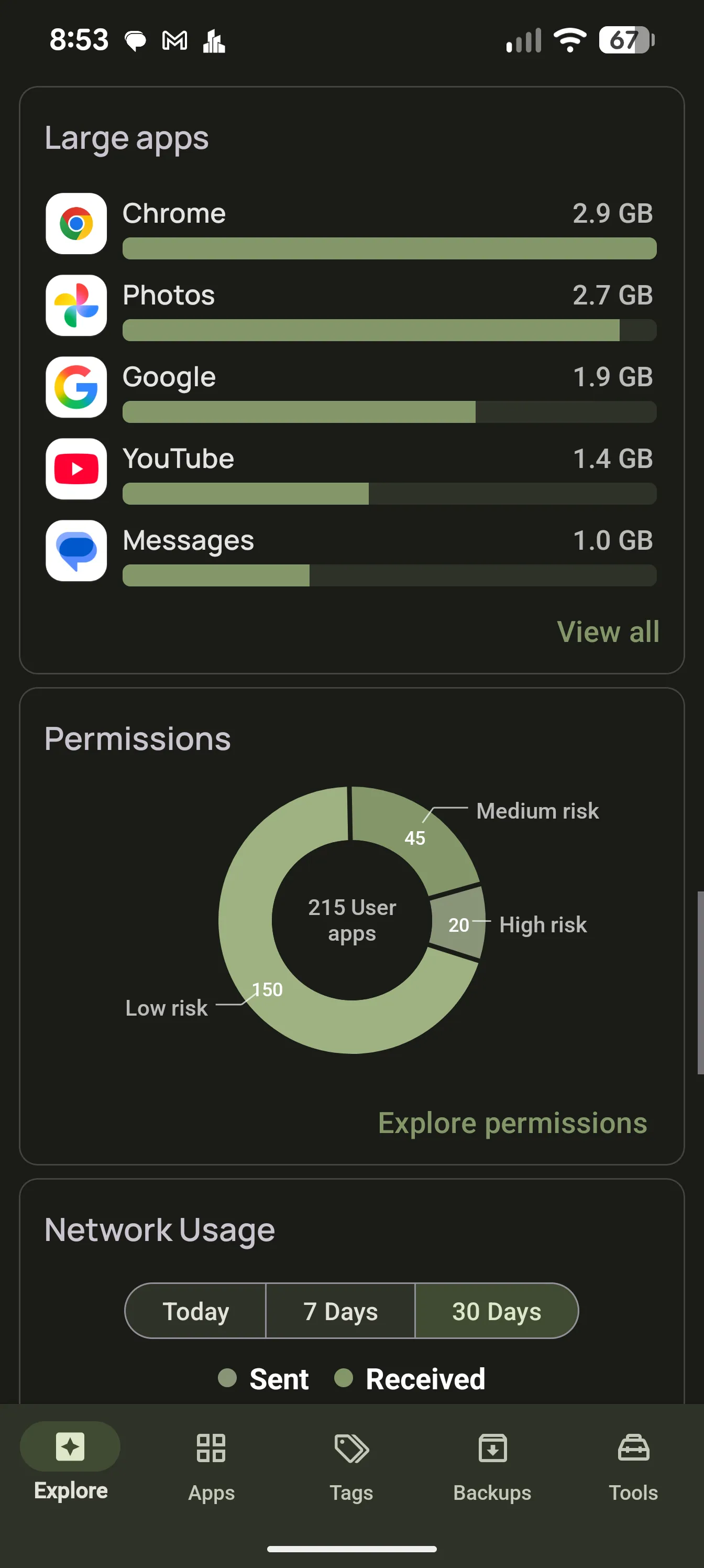
Explore is the first thing you see. Cards you can reorder and hide, insights that surface what needs attention, and widgets that bring the numbers to your home screen.
Cards you choose
Fifteen cards, each with a toggle and a drag handle. Keep the ones you look at and hide the rest. App count, new and updated apps, updates available, tags, usage, storage, unused apps, large apps, permissions, memory, network usage, recently uninstalled, install APKs, Play Store search and insights.
Reorder by dragging, hide with a toggle
Reset to the default layout any time
Storage card includes SD cards
Memory card shows RAM and swap
Insights
The insights card ranks what deserves your attention and shows the top three. Tap any insight to jump to the screen that deals with it.
Apps with sensitive permissions, and apps that changed permissions this week
Apps with special access, and apps exempt from battery optimization
Apps running in the background, storage hogs and unused apps
Updates available, backups out of date, watchlist price changes and sales
Apps installed this week and updated today
Three app widgets
App List, App Carousel and App Stack show new apps, updated apps or available updates over the last 24 hours, 7 days or 30 days. Choose whether a tap opens the app or its AppDash detail page, and set the background color and opacity.
List, carousel and card-stack layouts
24 hour, 7 day and 30 day ranges
Tap to launch or to open details
Resizable, with hideable header
Screen time and tag widgets
The Screen Time widget shows today’s total with your top apps. The Tags widget puts one tag’s apps on your home screen as a grid, with hideable names, and lets you back up, share or uninstall the tag from the widget.
Today’s screen time with top apps
Grid of apps from any tag
Tag actions from the widget
Shortcuts to any screen
Pin a home-screen shortcut to Apps, Tags, Backups, Tools, Usage, History, Permissions, Notes, Updated, Developers, Uninstalled, Running, Large or Unused apps, or to any individual tag. Long-press the AppDash icon for the APK Analyzer.
Shortcut to every major screen
One shortcut per tag
APK Analyzer from the launcher
Changes and history at a glance
The New and updated card and the Changes screen cover the last 90 days of installs and updates, and the Recently uninstalled card shows what left your phone. The full History screen keeps every event with its version and installer.
Installs and updates from the last 90 days
Recently uninstalled apps
Full history with search and filters
Common questions
Can I hide cards I do not use?
Yes. Open the card settings from the Explore toolbar, switch off any card, drag the rest into the order you want, and save.
How often do widgets update?
Widgets refresh on a 15-minute schedule and when you open AppDash. They do not poll continuously.
Does the Play Store search card need Enhanced App Info?
Yes. The search card, the Developers screen and the Watchlist all use AppDash’s server and appear when Enhanced App Info is on.