
Tune up

Running apps, freezing and battery optimization

Running apps, a real task manager, five ways to freeze an app, and battery optimization you can change in batches. All from the Tune-up section of the Tools tab.

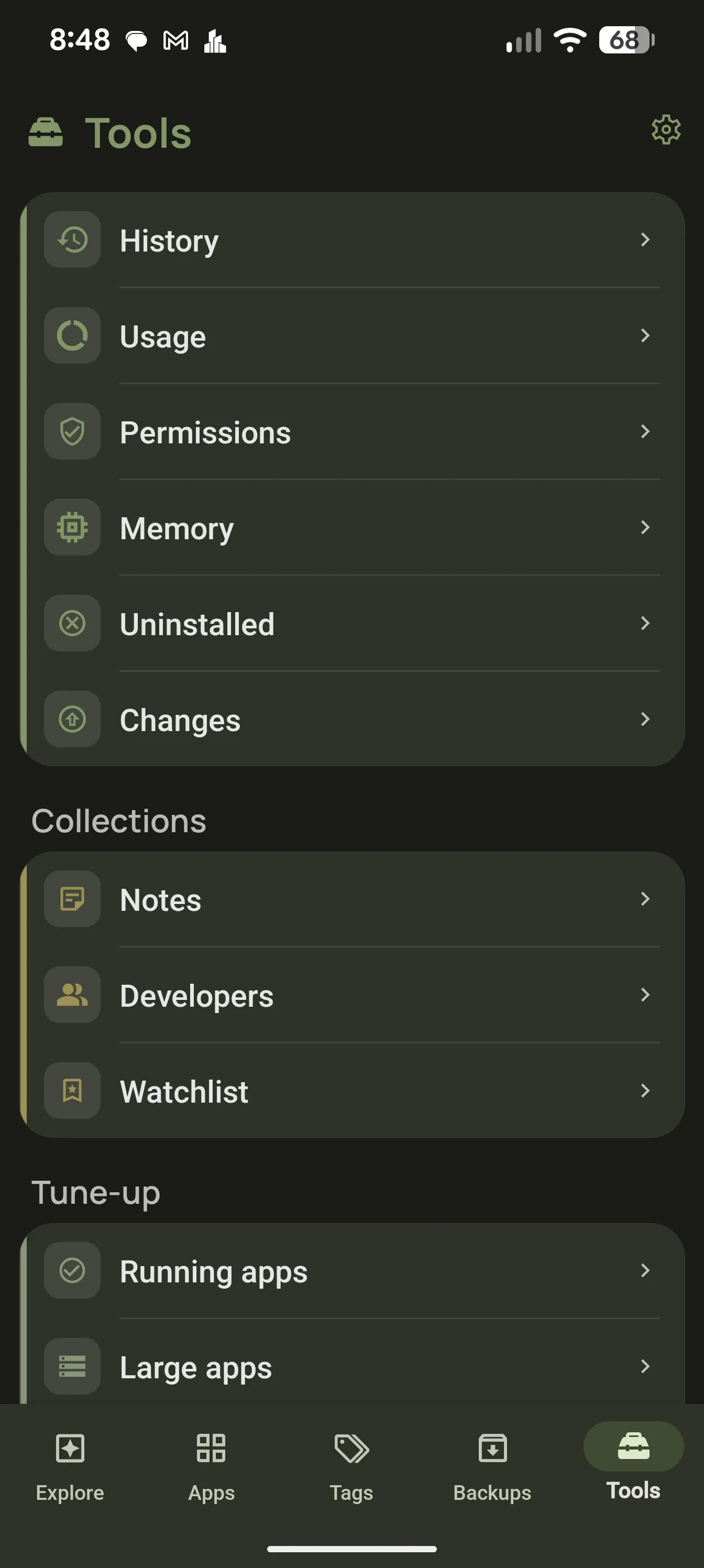
AppDash Tools tab with the Tune-up section

Running apps

See which apps you opened in the last few hours, which ones keep a foreground service running in the background, and which have an accessibility service switched on. With root or Shizuku, force close any selection and watch the RAM count go up.

  • Recently used, background and accessibility apps
  • Force close with root or Shizuku, with RAM freed shown live
  • Uninstall in a batch, or add apps to an ignore list

Task manager with Shizuku

A live process list refreshed every second, with CPU and memory per app, sortable by either. Tap a process for its UID, threads, uptime, CPU time and a full memory breakdown. A second tab lists services with clients, memory, uptime and crash counts.

  • Processes sorted by name, memory or CPU
  • PSS, RSS, Java heap, native heap and graphics memory
  • Services tab with crash counts and foreground state
  • Force stop or uninstall from the process sheet

Freeze apps, five ways

Pick the method that fits: force close to stop an app now, disable to remove it from the launcher, suspend to grey it out and block it, hide to make it vanish from app lists, or archive on Android 15 and newer to free its space while keeping your data. A Frozen tab shows what you did, and Unfreeze reverses it.

  • Force close, disable and suspend with root or Shizuku
  • Hide with root
  • Archive on Android 15+, no root needed
  • RAM estimate while you select apps

Battery optimization

Every user app listed as Unrestricted or Optimized, read from the system’s own setting. With root or Shizuku each row gets a switch and you can restrict or unrestrict a whole selection at once. Without them, each row opens the app’s system settings page.

  • Unrestricted and Optimized groups
  • Per-app switch with root or Shizuku
  • Batch restrict and unrestrict
  • Explore insight for apps exempt from optimization

Large and unused apps

Large apps are ranked by size and broken down into app, data and cache. Unused apps lists what you have not opened in about three weeks. From either list, uninstall or archive in a batch, or clear cache and data with root or Shizuku.

  • Size breakdown per app
  • Unused apps by real last-use date
  • Ignore list for apps you want to keep

Clear cache and data

With root or Shizuku, clear an app’s cache or wipe its data from the detail page, from any multi-select, or for a whole tag. On a few recent Android builds the system blocks cache clearing over Shizuku, and AppDash hides the option rather than failing.

  • Wipe cache and wipe data per app or in batches
  • Available by tag
  • Honest about platform limits

Common questions

Why can’t I see the task manager?
The task manager reads process data through Shizuku. Start Shizuku, grant AppDash access in Settings, and the Task manager tile appears in Tools.
What is the difference between disable, suspend and hide?
Disable removes the app from the launcher and marks it disabled in Settings. Suspend greys out the icon and stops the app from being opened or posting notifications. Hide removes it from app lists entirely while keeping its files and data. Disable and suspend work with root or Shizuku; hide needs root.
Does freezing delete my data?
No. Every freeze method keeps the app’s data on the device. Unfreeze brings the app back exactly as it was.
Does archiving need root?
No. On Android 15 and newer, archiving uses the system’s own feature and asks you to confirm each app. With root or Shizuku it runs silently. It works for apps installed from Google Play.

More features

Try it with a full-access preview

Install AppDash and use every feature for 7 days. No ads, no tracking.